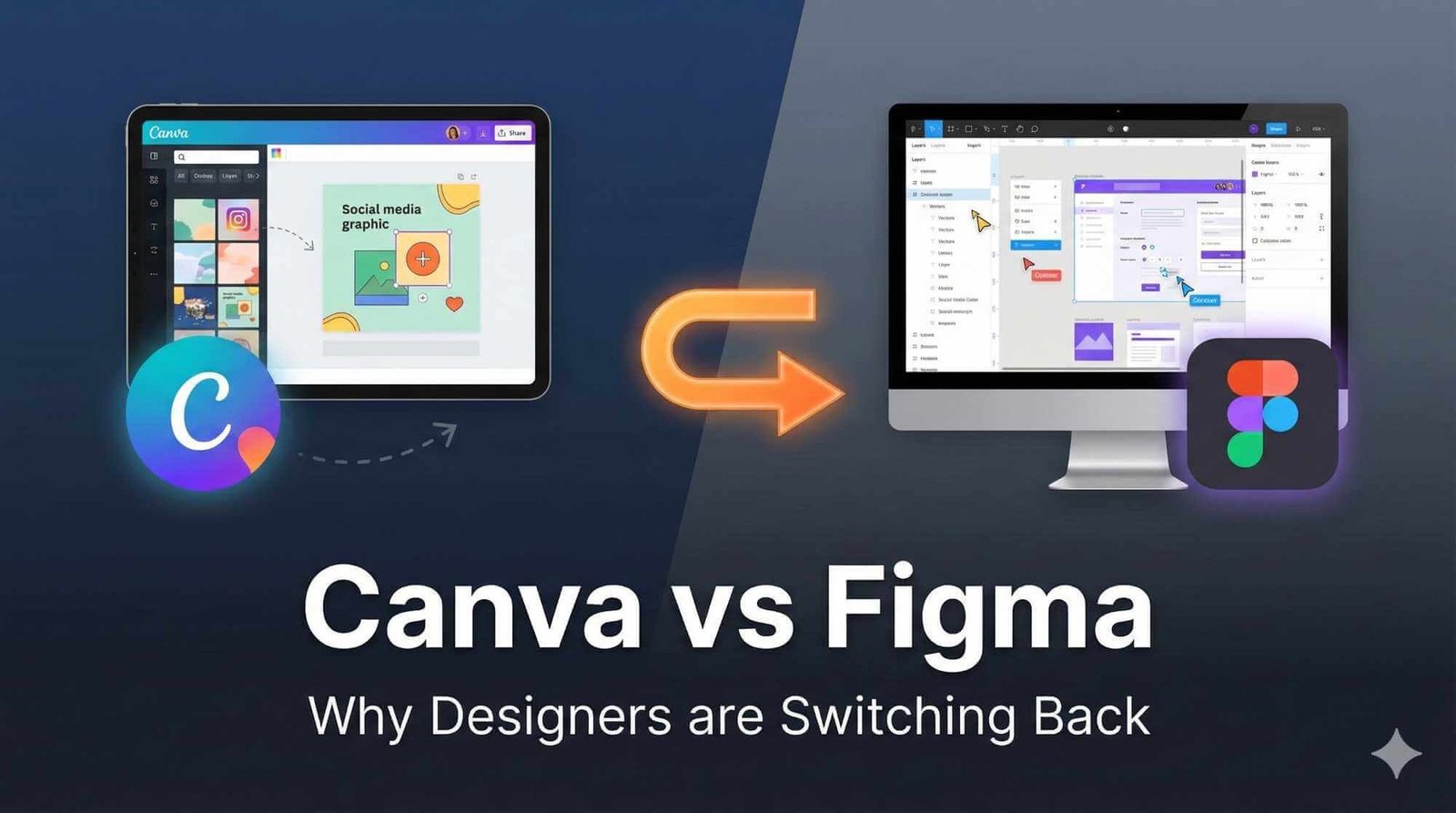
Canva democratized design, but Figma remains the king of UI/UX. However, the lines are blurring.
For the last few years, the design world has been dominated by a single narrative: “Canva is killing professional design software.” And for a while, it seemed true. Agencies, freelancers, and even senior designers started moving their social media workflows and slide decks to Canva to save time.
But in 2026, we are seeing a reversal. Professional designers are migrating back to Figma.
Why? Because while Canva is built for speed, Figma is built for systems. As brands demand more consistent, responsive, and scalable assets, the “drag-and-drop” limitations of Canva have hit a ceiling.
In this deep dive, we compare Canva vs Figma to help you decide: Is the speed of Canva worth the loss of control?
The Quick Verdict: Which Tool Wins?
| Feature | 🏆 Figma | 🎨 Canva |
|---|---|---|
| Best For | UI/UX, Web Design, Product, Vectors | Social Media, Print, Presentations |
| Learning Curve | High (Professional Tool) | Low (Drag & Drop) |
| Scalability | Unlimited (Design Systems) | Limited (Brand Kits) |
| Developer Handoff | ✅ Native (Dev Mode) | ❌ Non-existent |
| Pricing | Free / $12/mo (Pro) | Free / $15/mo (Pro) |
Editor’s Take: If you are building a product (website, app, complex brand), you need Figma. If you are feeding a content machine (daily Instagram posts, flyers), you need Canva.
The “Canva Trap”: Why Designers Left (and Why They Returned)
The Allure of Canva
Designers moved to Canva because clients wanted things fast. The promise was seductive: why spend 2 hours drawing an icon in Illustrator when Canva has a library of 50,000 ready-to-use assets? For simple tasks, Canva was—and still is—unbeatable.
The Reality Check: The “Switching Back” Moment
The frustration begins when the client says: “Can you change the padding on all 50 slides?” or “Make sure this looks good on mobile.”
In Canva, that is a manual process. You have to click and drag 50 times. In Figma, you adjust one Main Component, and it updates across 500 screens instantly. This lack of “global control” is the primary reason agencies are switching complex workflows back to Figma.
Key Differences Deep Dive
1. Auto Layout vs. Magic Resize
Figma’s Auto Layout is the closest thing designers have to magic. It allows buttons to grow as you type and lists to rearrange themselves automatically. It mimics how websites are actually coded (Flexbox).
Canva’s Magic Resize is an AI tool that blindly squashes content to fit different aspect ratios. It’s great for turning an Instagram Post into a Story, but terrible for maintaining strict UI spacing rules.
2. Vector Precision vs. Raster Assembly
Figma is a vector-based tool. You can manipulate every anchor point of a logo. Canva is largely a “composition” tool. While they have added some vector features, you are mostly assembling pre-made parts. If you need to design a custom icon set, Canva is a non-starter.
3. The Developer Handoff
This is the dealbreaker for web design. If you design a website in Canva, you hand your developer a flat image. They have to guess the font sizes, colors, and margins.
In Figma, Dev Mode gives developers the exact CSS code, padding values, and asset exports. It bridges the gap between design and code.
When Should You Still Use Canva?
We aren’t hating on Canva. In fact, most smart agencies use both.
- Use Canva for: Social media graphics, pitch decks for non-designers to edit, print flyers, and quick mockups.
- Use Figma for: Websites, Mobile Apps, Logos, Design Systems, and complex multi-page documents.
Conclusion: The Hybrid Workflow
The industry isn’t abandoning Canva; it’s just putting it back in its lane. The “switching back” trend is simply professional designers realizing that efficiency isn’t just about how fast you can create; it’s about how fast you can edit.
For scalable, professional design, Figma remains the undisputed king.
Try Figma for Free | See All Design Tools
FAQ
Can I import Canva designs into Figma?
Yes, but it’s messy. You can export Canva as an SVG or PDF and import it to Figma, but you will often lose editability on text layers and specific effects.
Is Figma free?
Figma has a very generous “Free Forever” plan that allows unlimited personal files and 3 collaborative files. For most freelancers, the free version is sufficient.